Setup Guide
Configure virtual MIDI ports and Cubase for auto track switching
1Set Up Virtual MIDI Ports
Windows
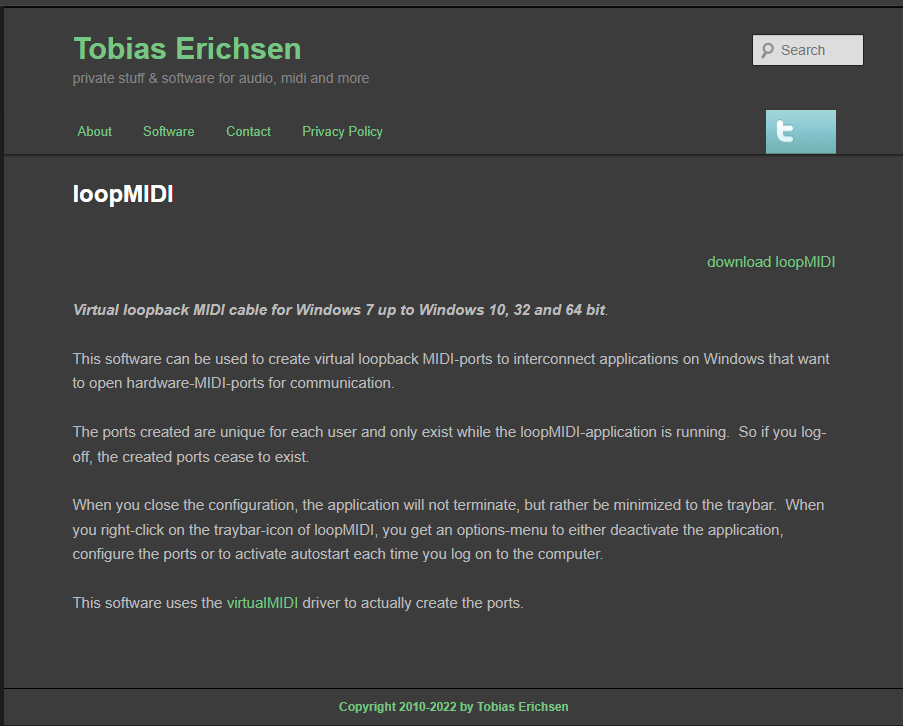
- 1.Download and install loopMIDI by Tobias Erichsen
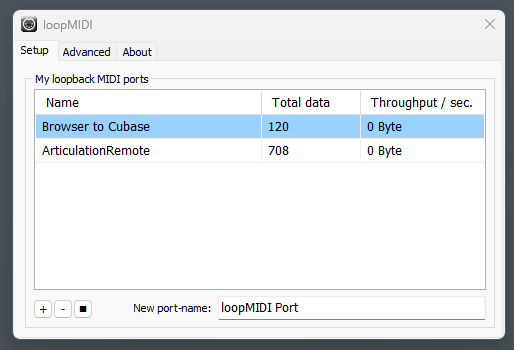
- 2.Open loopMIDI and create two ports by typing the name and clicking the + button:
- Browser to Cubase
(sends articulations to Cubase)
- ArticulationRemote
(receives track names from Cubase)
macOS
- 1.Open Audio MIDI Setup (Applications → Utilities)
- 2.Go to Window → Show MIDI Studio
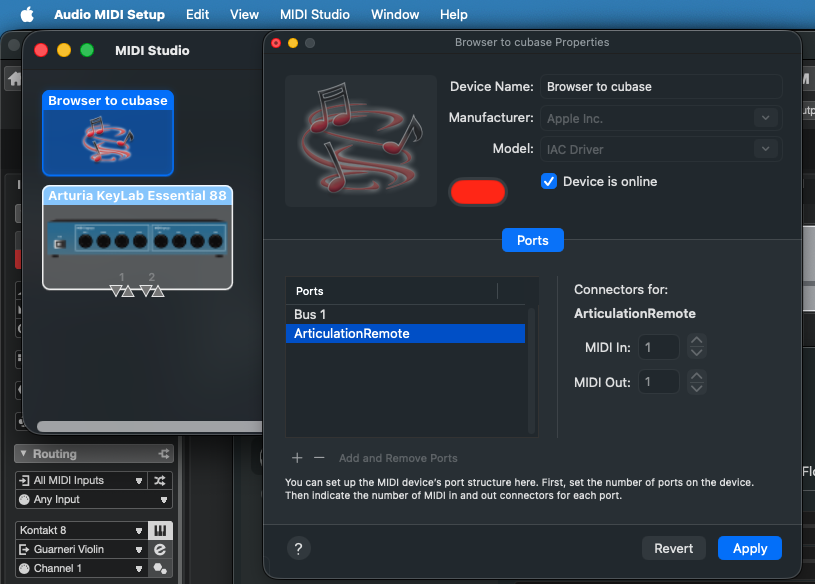
- 3.Double-click IAC Driver
- 4.Check "Device is online" and add two buses using the + button:
- Browser to Cubase
- ArticulationRemote
2Install MIDI Remote Script
The MIDI Remote Script enables auto track switching. Copy articulation_remote.js to Cubase's factory scripts folder.
Finding the script: Right-click the Cubby Remote tray icon and select "Open Cubase Script Folder" to open the folder containing articulation_remote.js.
Windows
- 1.Right-click the Cubby Remote tray icon and select "Open Cubase Script Folder"
- 2.Copy articulation_remote.js to:
C:\Program Files\Steinberg\Cubase 15\midiremote_factory_scripts\Public\articulation\remote\(Create the articulation\remote folders if they don't exist. Admin rights required.)
macOS
- 1.Open Finder and go to your Applications folder
- 2.Find Cubase 15, right-click it and select Show Package Contents
- 3.Navigate to Contents/midiremote_factory_scripts/Public/
- 4.Create a folder called articulation, and inside it create remote
- 5.Right-click the Cubby Remote menu bar icon and select "Open Cubase Script Folder"
- 6.Drag articulation_remote.js into the remote folder
3Configure Cubase
Add the MIDI Controller Surface
- 1.Open Cubase and go to Studio → MIDI Remote Manager
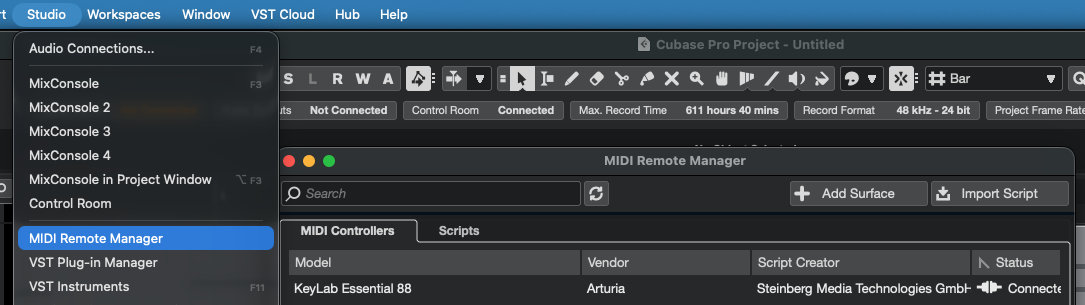
- 2.Click + Add Surface and select Vendor: articulation and Model: remote
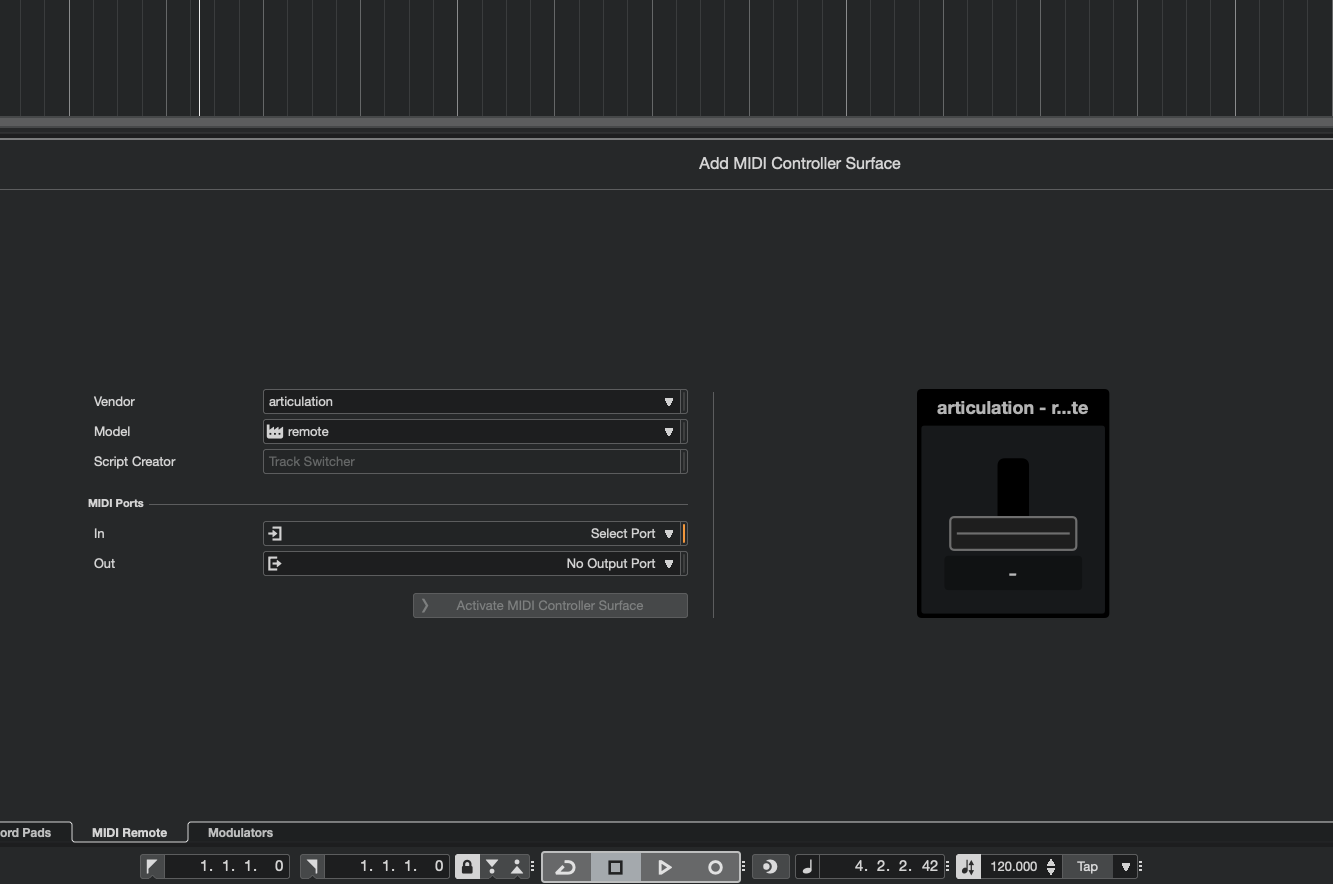
- 3.Set the MIDI In port to ArticulationRemote and Out port to ArticulationRemote
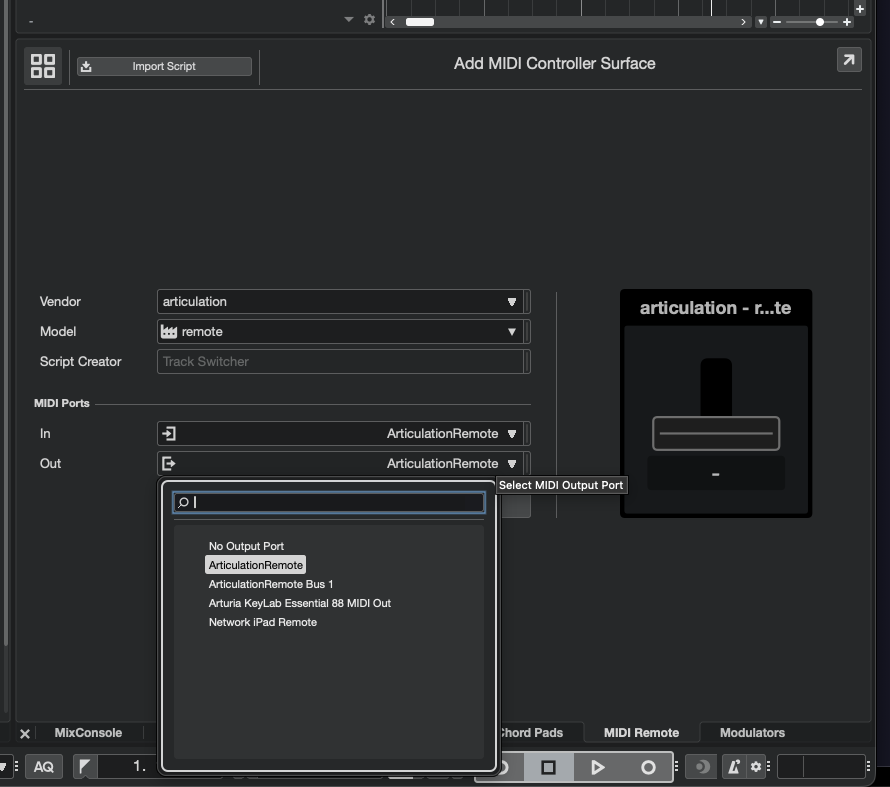
- 4.Click Activate MIDI Controller Surface
Windows Only: Prevent MIDI Feedback
- 1.Go to Edit → Preferences → MIDI
- 2.Uncheck "MIDI Thru Active"
- 3.Go to Studio → Studio Setup → MIDI Port Setup
- 4.Hide the "Browser to Cubase" output port to prevent feedback loops
Setup Complete
Restart Cubase, then launch Cubby Remote. When you select a track, the matching expression map will load automatically.